
PDF editor
Edit PDF text and pages
Edit PDF text and scans, fill forms, sign, organise pages and redact.
Runs on your device
Open PDF editor
Edit PDF text and scans, fill forms, sign, organise pages and redact.
Make changes to an existing PDF
Correct text, fill a form, add a signature or organise pages, then save a new PDF. Digital documents and scans need different kinds of text editing.
Start with selectable text or a scan
If you can select the words in a PDF, try clicking the text you want to change. When the embedded font can be reused, the editor keeps it for the correction.
For a scanned page, use Recognise text first. Check the recognised areas against the image, then select a line and enter the replacement. Clear, upright print is easier to recognise than handwriting, glare or text over photographs.
Add marks and complete forms
Add dates, notes, highlights, drawings, images or a visible signature. Fill supported form fields, or add fields for someone else to complete in a compatible PDF reader.
Use solid redaction to remove sensitive information from the exported page. Blur leaves a mosaic that may reveal clues about the original content, so it is not a substitute for redaction.
Put the pages in order
Use the thumbnails beside the page to reorder, rotate, duplicate or delete pages. You can also insert a blank page or import selected pages from another PDF. Undo and redo let you revise these changes before saving.
Check the copy you save
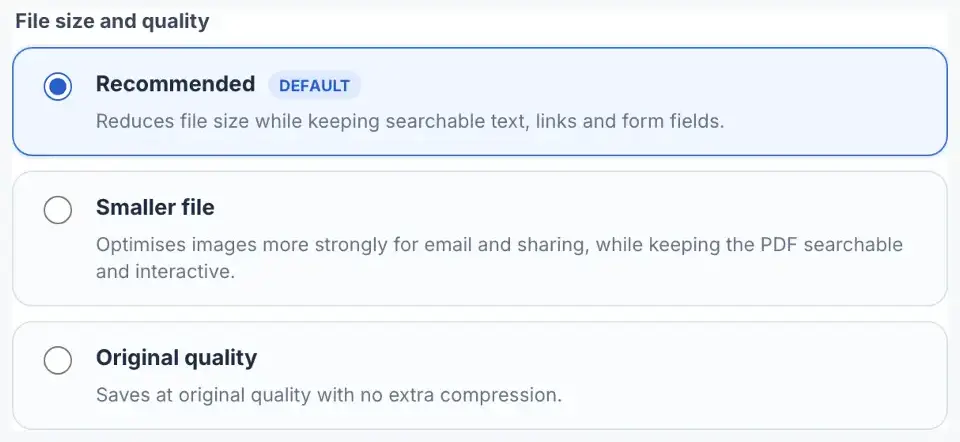
Some PDFs store text in ways the editor cannot preserve directly. In those cases, an edited page may be saved as a page image. Check whether text selection, links or form fields you need still work in the downloaded copy.
Open the result in another PDF reader and inspect every changed area. Keep the original until you are satisfied with the result. Editing a certified or digitally signed document may invalidate its certification.

Recover an interrupted edit
Editing and export run in this browser. A local recovery draft can help if the tab closes unexpectedly; it may remain on this device until you clear or replace it. After saving, choose Close document to clear the editor’s recovery draft. Closing the tab alone can leave the draft available.