
How to combine PDF files in order
Merging PDFs puts their pages into one file without changing the originals. Decide which pages belong in the document and in what order before you start.
Prepare the source files
Open each PDF and check that it has the pages you expect. Unlock password-protected files first, using a password you know. Download cloud-only files to your device before adding them.
Keep the originals. If you only need part of a document, extract those pages or remove unwanted pages from a copy before merging. Add up the expected page count so you can check the result.
Set the file order
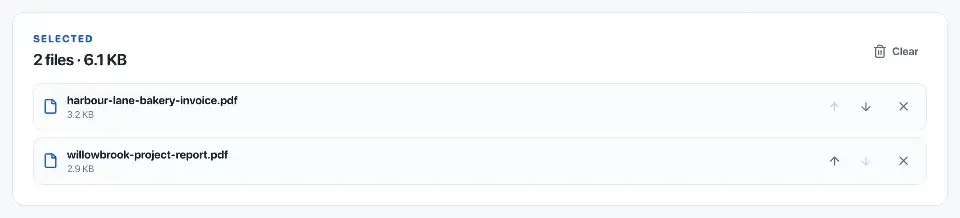
Choose between 2 and 20 PDFs in Merge PDF, up to 120 MB in total. Move each file up or down into reading order. For a report, that might mean the cover first, then the main text and finally the appendix.
For a large set, filenames such as 01-cover.pdf, 02-report.pdf and 03-appendix.pdf make the order easier to recognise. Check the actual list before merging; do not rely on filenames alone.
Merge the pages
Select Merge PDFs and keep the tab open while it works. Rebuildfree copies PDF pages into the new document without turning them into images, so existing digital text can remain selectable.
The first PDF supplies the base document structure. Read any warnings about signatures, repairs or removed tagging before downloading. The source files remain unchanged, and processing happens in your browser.
Handle larger bundles in stages
If you have more than twenty files, combine related groups first and then merge the group PDFs. Check each group before moving on. This also helps you find a problem file without repeating the whole job.
Large or image-heavy documents can use more memory than the browser has available. Close other busy tabs or try smaller groups. For confidential material, use a device and browser profile that you are allowed to use for those files.
Check the combined PDF
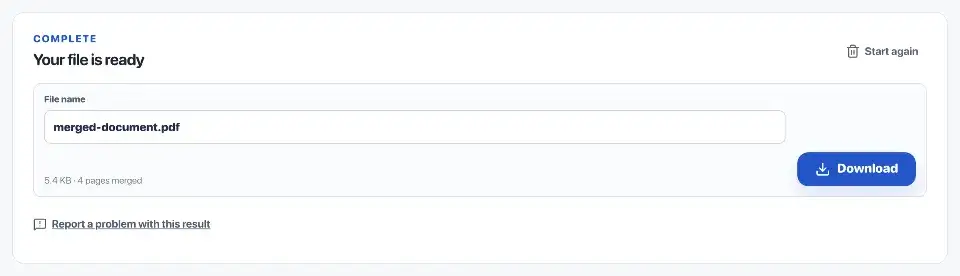
Open the download in another PDF reader. Compare the page count with your expected total and inspect the joins between documents. For example, a two-page letter followed by a three-page report should produce five pages, with the report starting on page three.
Search and copy a sentence from a digital page. Test any forms, links or bookmarks you need. If a source had a digital signature, keep that signed original and check the signature status after merging.
Different page sizes can remain different in the combined PDF. Check wide tables and smaller pages in the viewer and print preview so nothing is cropped.
- The page count equals the expected total.
- The first and last page of every source are present.
- Documents appear in the intended reading order.
- Important text, links and form fields still work.
- The merged file opens in another PDF reader.
Resolve merge problems
If one file will not merge, open it on its own. Try Repair PDF on a copy if it appears damaged. A file with a specialist PDF format or an unsupported form may need a standard PDF copy; check the tool's file guidance before retrying.
If the combined PDF is too large to send, check its contents first and then compress a sharing copy. Keep the merged original so you can return to it if compression makes a page difficult to read.
Official sources
Sources checked on 30 September 2026 for the technical and procedural details cited in this guide.